
Avant d'appeler, il faut des contacts. Vitecall en accepte de trois façons : un fichier CSV, une saisie à la main ou un import depuis votre CRM ou lemlist. Ce guide montre les deux premières. Les noms, emails et numéros visibles sur les captures sont fictifs.
Step 1: Open Contacts
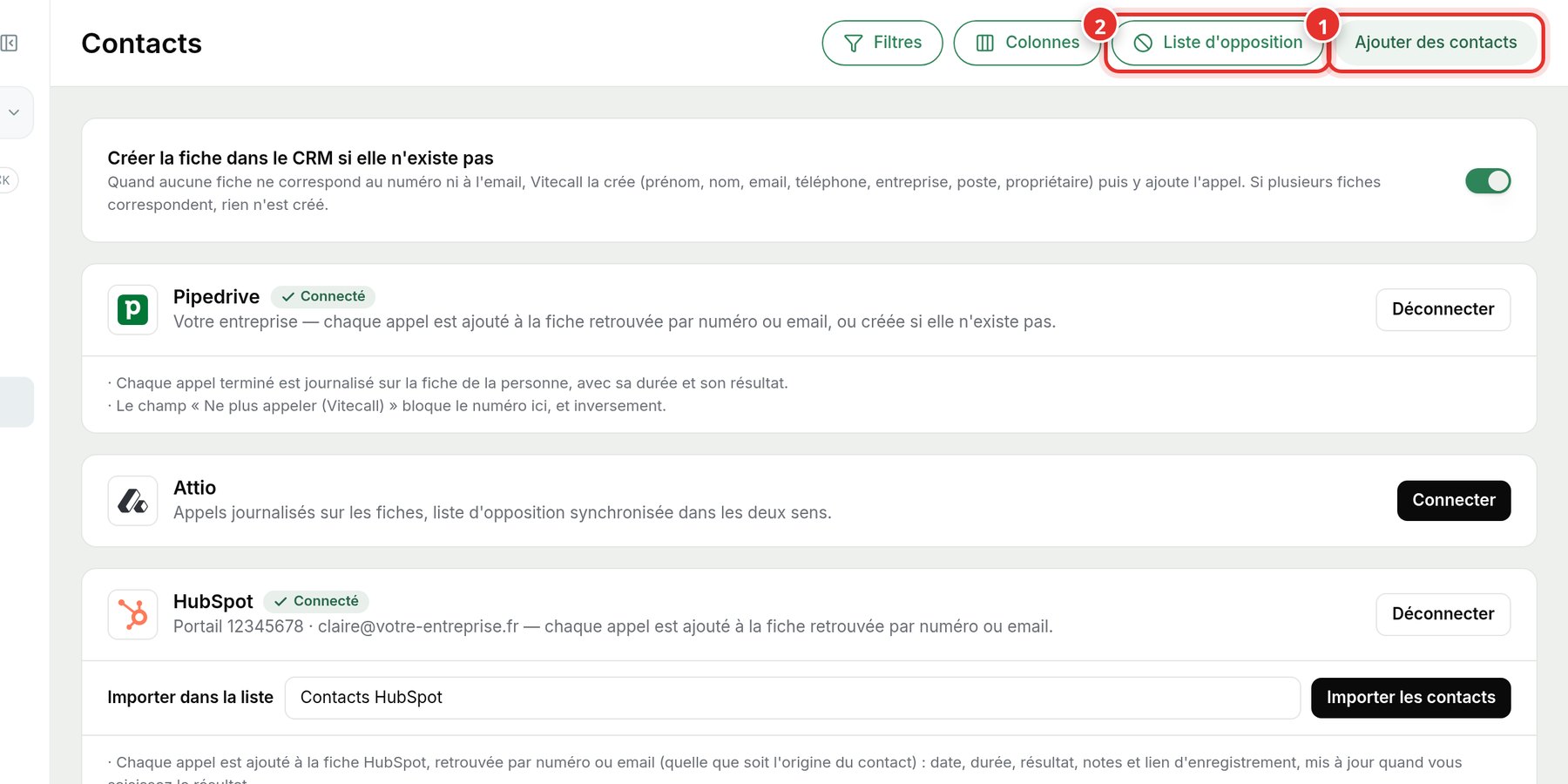
In the left menu, click Contacts. At the top right, click Add contacts (1). The DNC List button (2) contains numbers that must never be called again.
Step 2: Choose file or manual entry
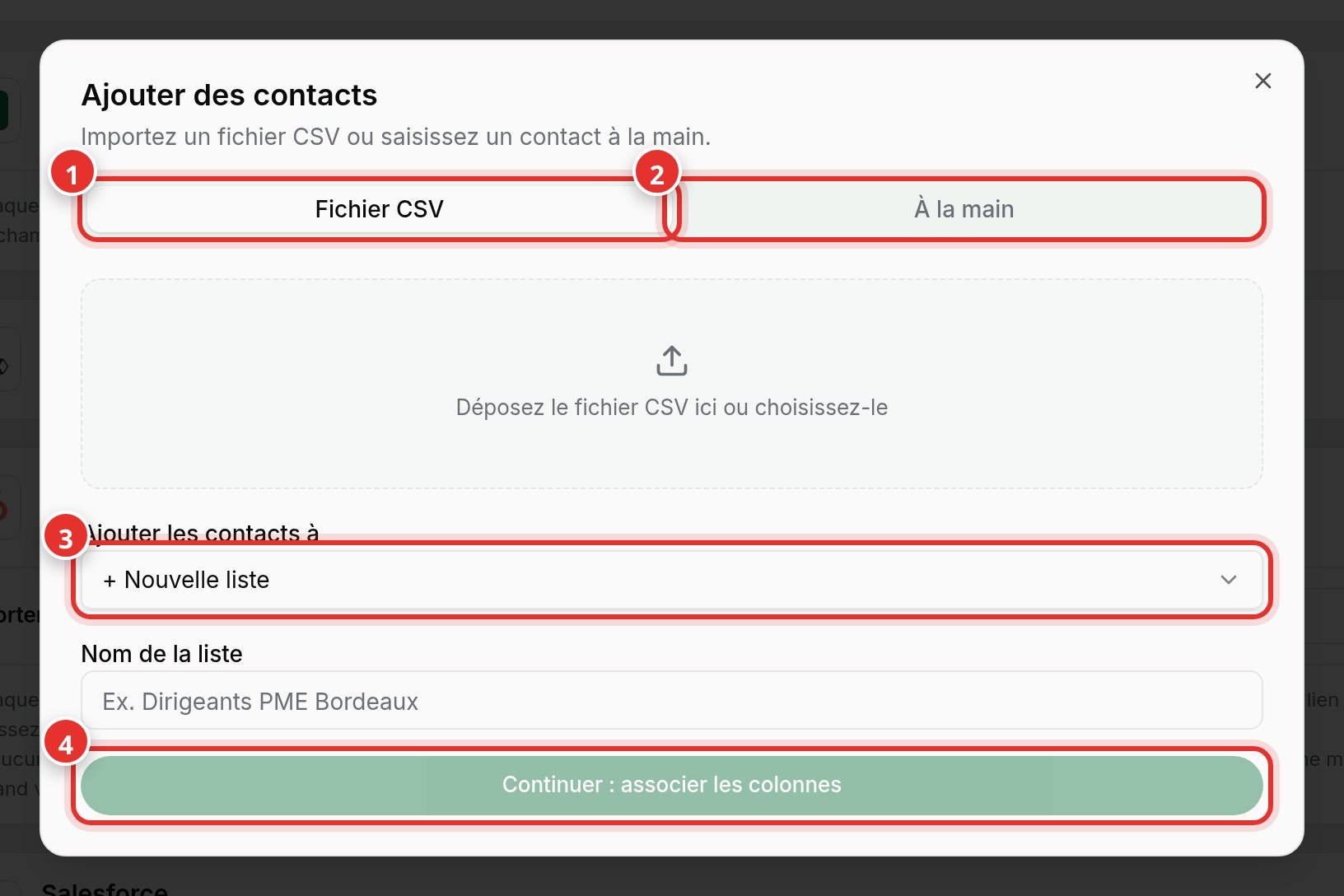
Choose CSV File (1) to import a list, or Manually (2) for a single contact. Then select the call list (3): an existing list or a New list with a name. Finally, click Continue: map columns (4).
Step 3: Map columns
Vitecall shows a preview of your file. Indicate which column contains the first name, last name, phone, company, or email. Only the phone number is required to call.
- Phone numbers are normalized using the selected country, from local or international formats.
- Duplicates already present in your team are flagged before import.
- DNC numbers are automatically excluded.
Frequent issues
| What you see | What to do |
|---|---|
| Accents are displayed incorrectly | Save your file as CSV UTF-8 from Excel or Google Sheets. |
| A contact shows No number | The phone column was empty or incorrectly mapped: fix the entry. |
| The Continue button remains grayed out | Select a file and name the new list. |