

A Vitecall session calls your list for you. Vitecall dials multiple numbers at once, filters out voicemails and unanswered rings, and only connects you to people who pick up. You talk, Vitecall handles the rest. Here is how to launch it in four steps. Contacts shown in screenshots are fictional.
Before you start
- A Vitecall account with an active number: connect your own or request one from support in your dashboard, subject to availability and your plan. Allocation is not automatic.
- A microphone and headset plugged in, and microphone permission granted in your browser.
- A contact list with their numbers: CSV file, manual entry, or import from your CRM or lemlist.
Step 1: Create a list and import your contacts
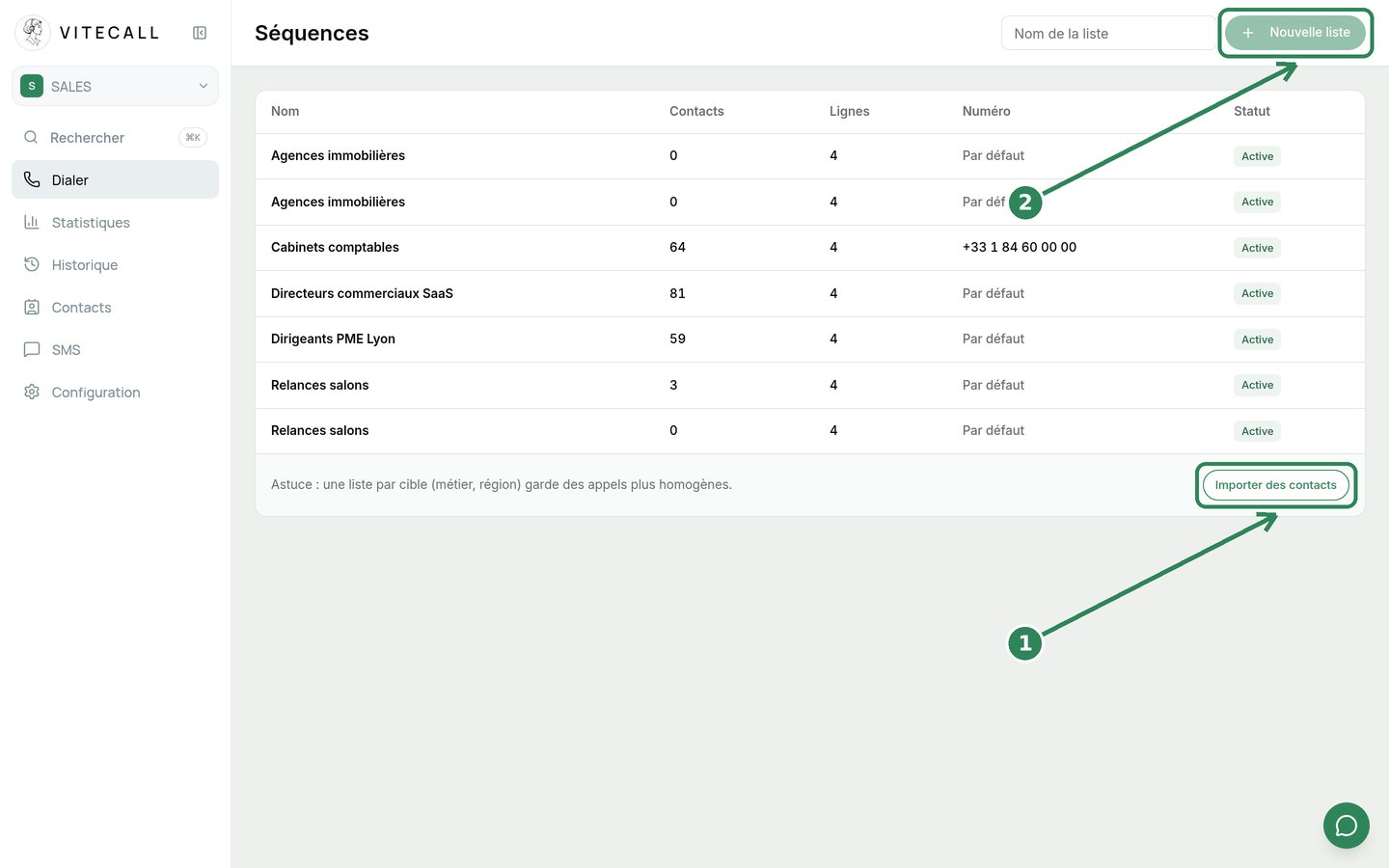
Open Dialer. Name your list then click New list (2). Then click Import contacts (1) to add your file. Vitecall formats numbers correctly, flags duplicates, and blocks those on do-not-call lists.
Step 2: Verify the list
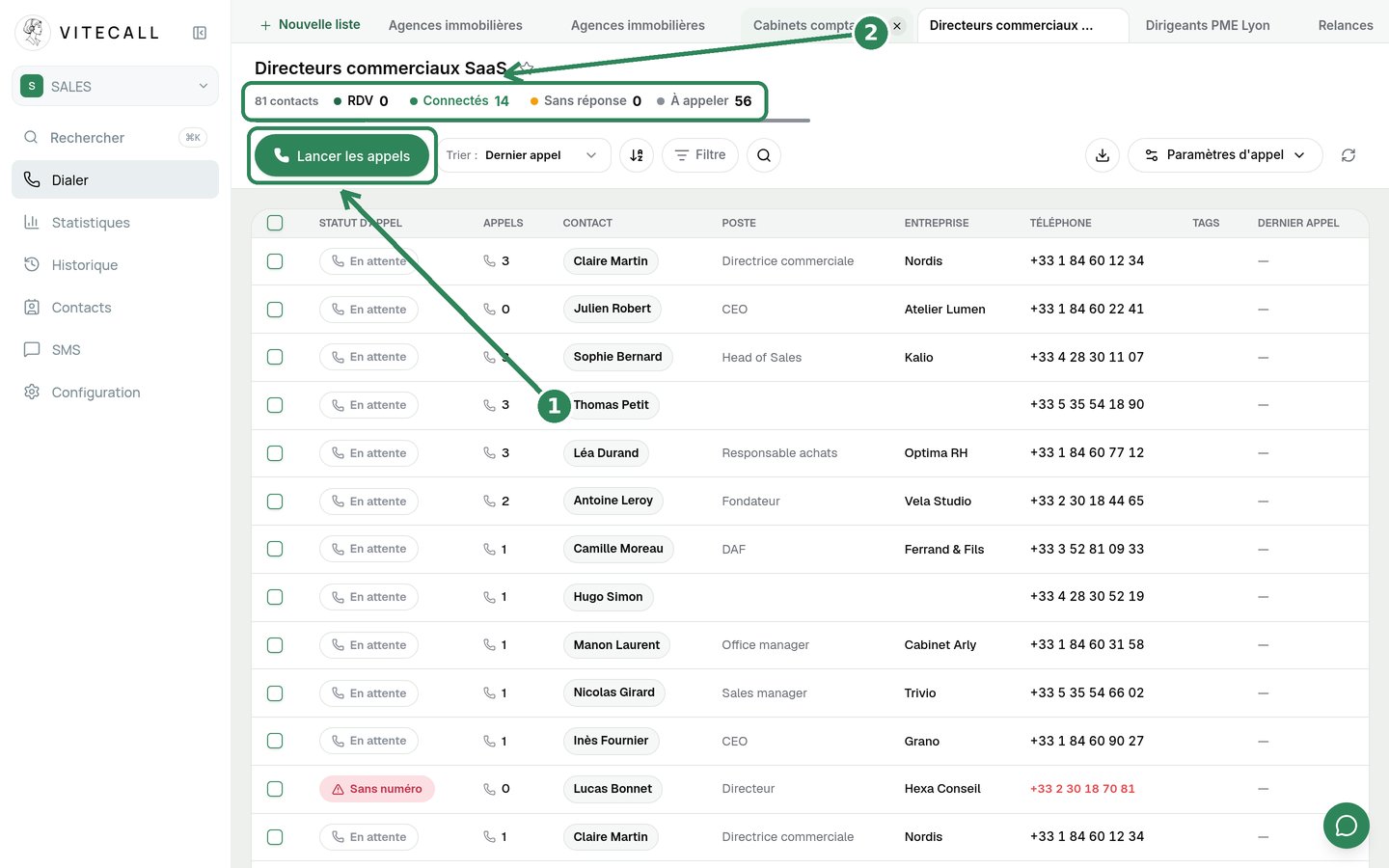
Open the list. At the top, counters (2) indicate how many contacts remain to be called, how many were reached, and how many resulted in an appointment. A line marked No number will not be called: fix the number or set it aside.
Step 3: Choose your settings
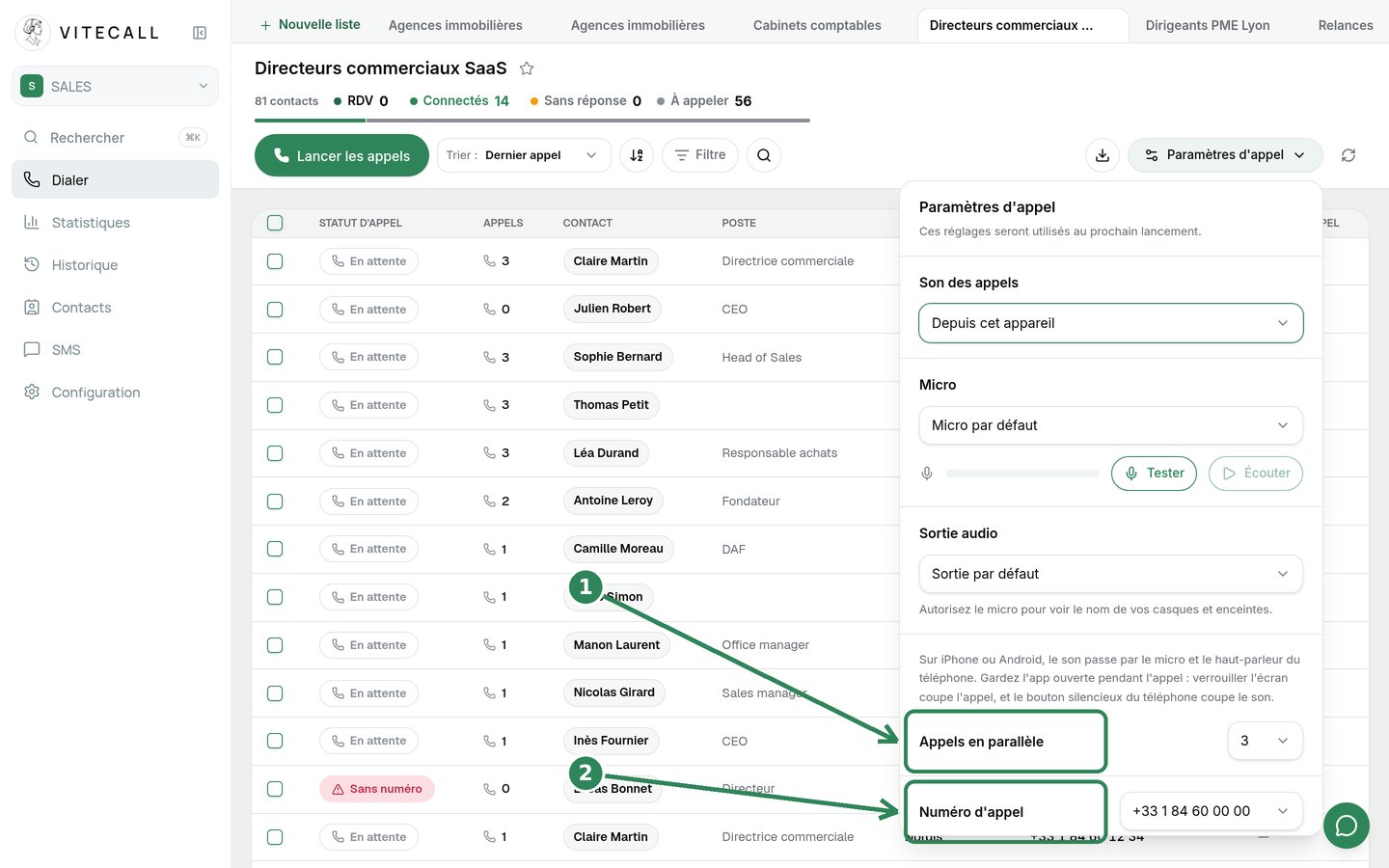
Click Call Settings. Choose the number of Parallel calls (1): the higher it is, the less you wait between conversations. The maximum depends on your plan: 1 for Solo, 3 for Pro, 5 for Intensive. Verify the Caller ID (2) that will appear to your prospects. Test your microphone if this is your first session.
Then click Launch calls. As soon as someone picks up, their lead card opens with your script, notes, and exchange history.
During the session
- Vitecall dials the next numbers while you are online: you move from one to the next without waiting.
- When you hang up with a prospect, the session stops: choose the result (Appointment booked, call back, not interested...), add a note, then resume the session.
- If the prospect asks not to be called again, mark them as do-not-call: they will never be dialed again.
- You can pause the session at any time and resume it later.
- If your CRM is connected, each call is added automatically with its result and your note.
Step 4: Track results
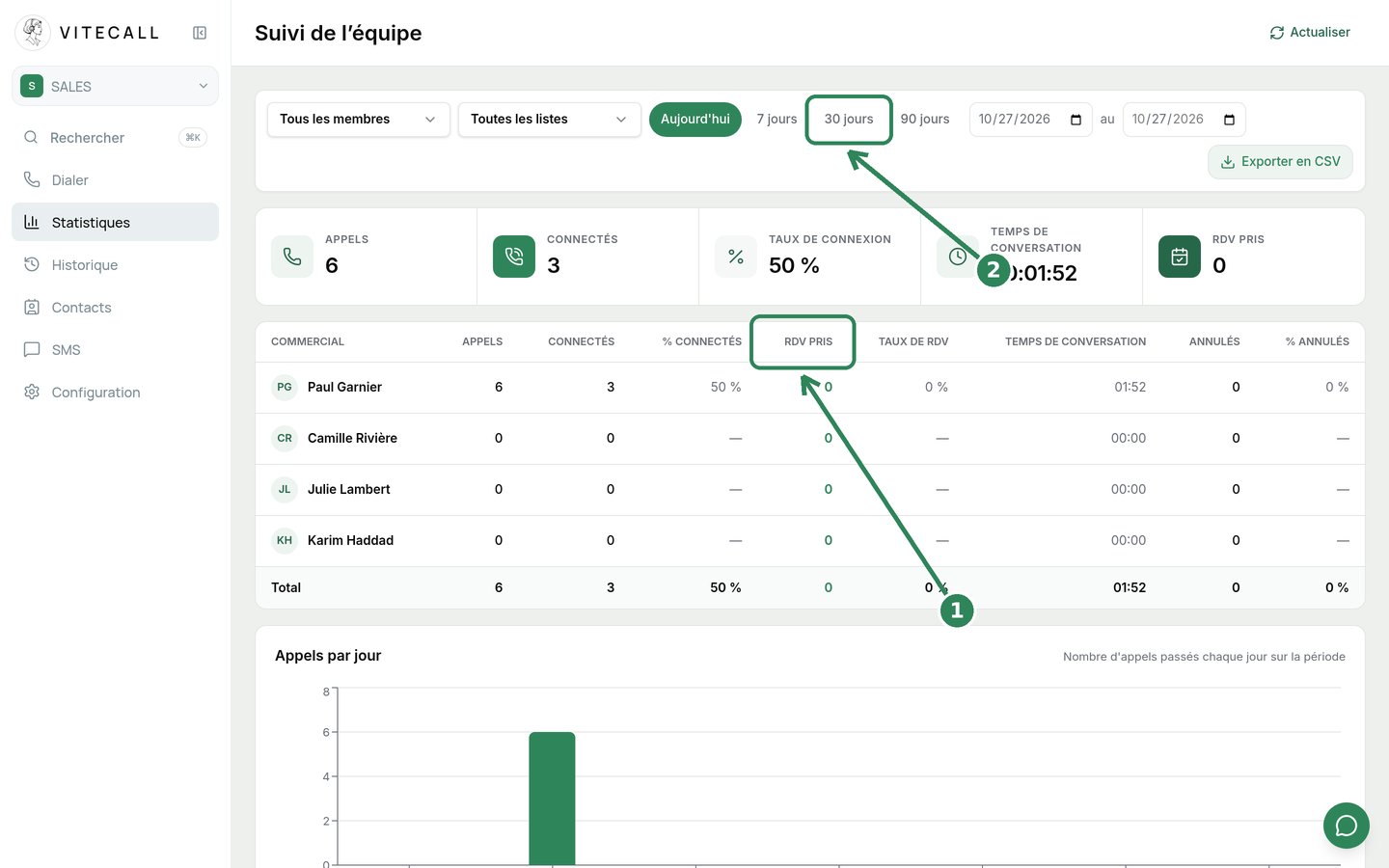
Open Statistics. Choose the period (2) then view, for each rep, calls, people reached, and appointments made (1). You can export the table to CSV, or ask Claude questions directly if you have connected Vitecall to your assistant.
Frequent issues
| What you see | What to do |
|---|---|
| The Launch calls button is greyed out | The list has no more contacts to call, or no active number is linked to your account. |
| You cannot be heard | Allow microphone in the browser, then use Test in Call Settings. |
| A contact shows No number | The number is missing or invalid: fix it in their lead card. |
| On mobile, the call cuts out | Keep the app open: locking the screen cuts the call. |
Any questions? Message us from the in-app chat; the team will reply.